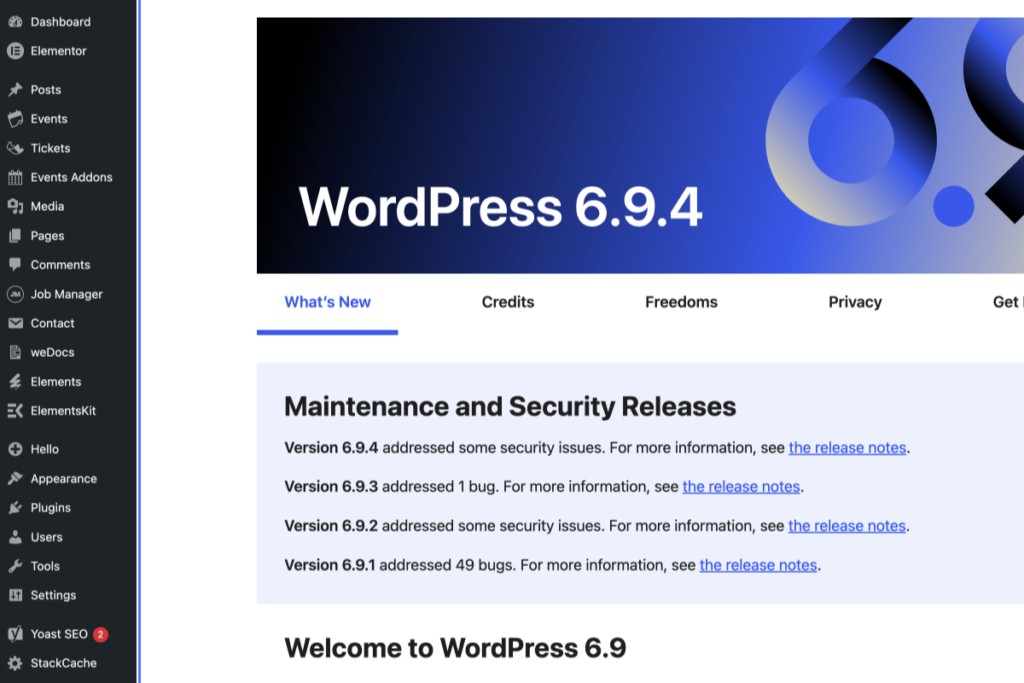
Screenshot of the WordPress 6.9.4 dashboard showing maintenance and security release notes under the “What’s New” tab, with the left sidebar menu visible. – OADR Training
2
Click on the link “Job Manager”
Screenshot of a WordPress 6.9.4 dashboard with the “Job Manager” menu expanded, showing options like Job Listings, Types, Categories, Resources, Settings, Marketplace, and an update notice. – OADR Training
3
Click on the link “Add Job”
Tab Name: Jobs ‹ OADR Training — WordPress
Screenshot of the WordPress admin dashboard showing the Job Manager plugin with notifications about listing jobs and data collection. The sidebar menu and job management options are visible. – OADR Training
4
Click here
Tab Name: Add Job ‹ OADR Training — WordPress
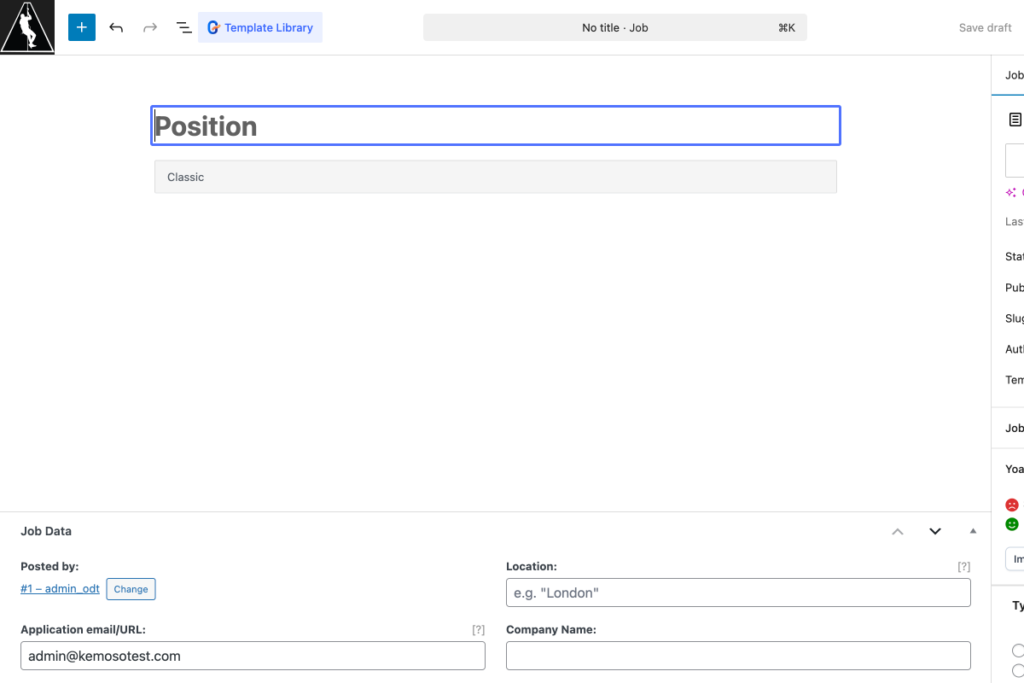
A job advert form with fields for position title, location, application email/URL, and company name. The “Posted by” field shows “admin. – OADR Training
5
Click here
Screenshot of a job advert template in a content management system, showing a blank text editor and fields for job details, location, email, and company name. – OADR Training
6
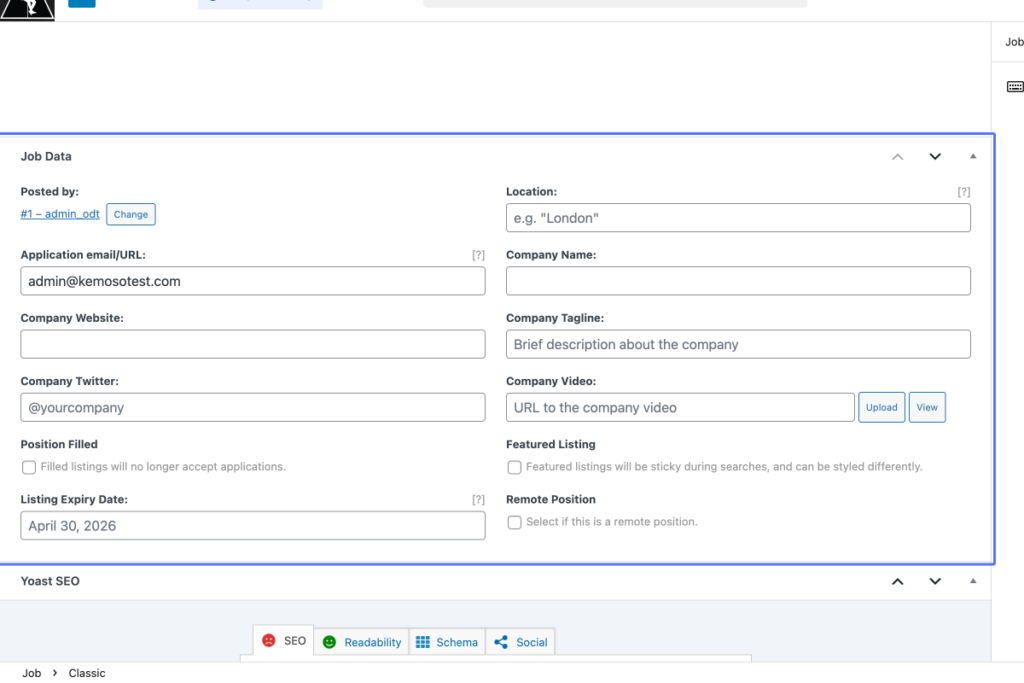
Click on “Job Data Move up Move down Toggle panel: Job Data Posted by: #1 – admin_odt Change Location: [?] …”
Screenshot of a job advert form with fields for job title, location, application email, company name, company video, listing expiry date, and options for featured and remote positions. – OADR Training
7
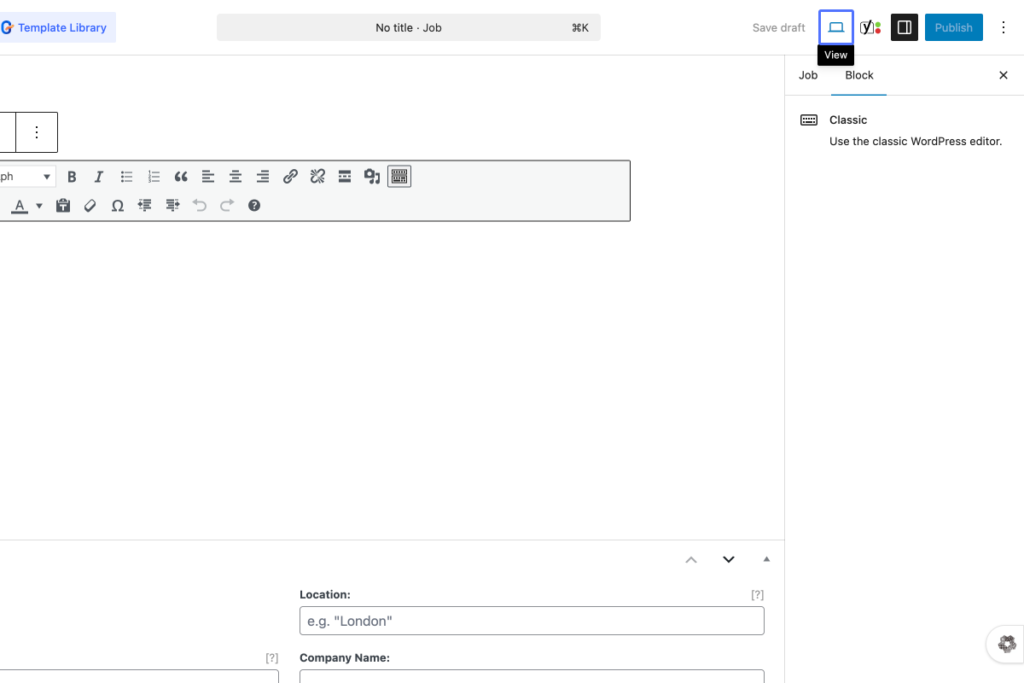
Click on the button “View”
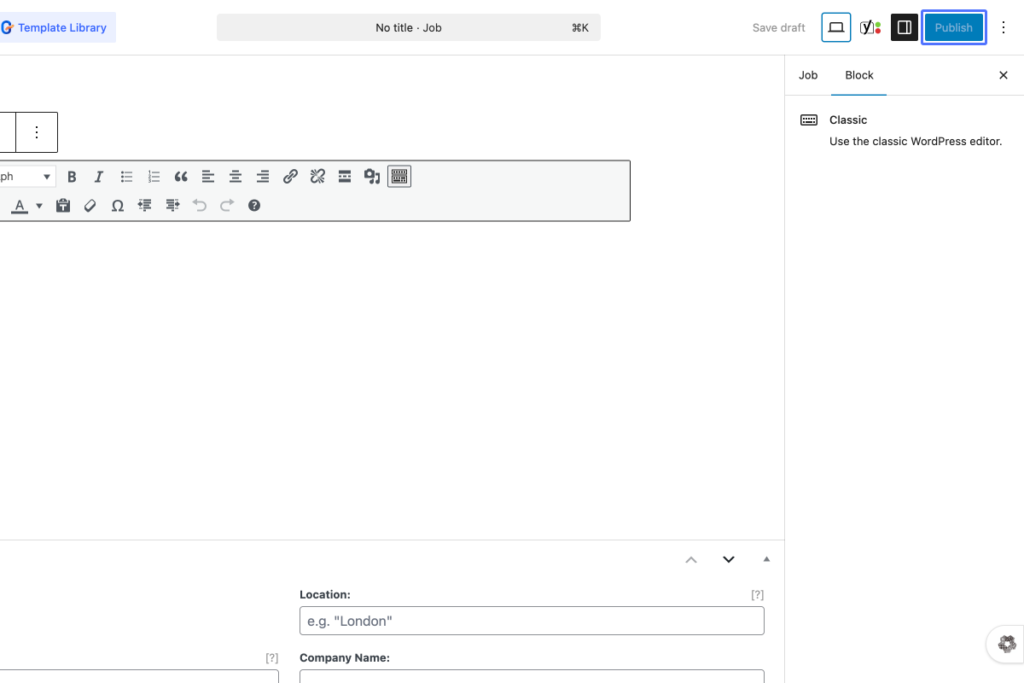
Screenshot of a WordPress editor interface showing an empty post with fields for location and company name, and options for editing in Classic mode on the right sidebar. – OADR Training
8
Click on “Desktop Tablet Mobile”
A WordPress editor screen shows options for Desktop, Tablet, and Mobile previews, with a job listing form visible in the main editing area. – OADR Training
9
Click on the button “Publish”
Screenshot of a WordPress editor page showing a blank post titled “Job,” with fields for location and company name visible below the text editor. – OADR Training