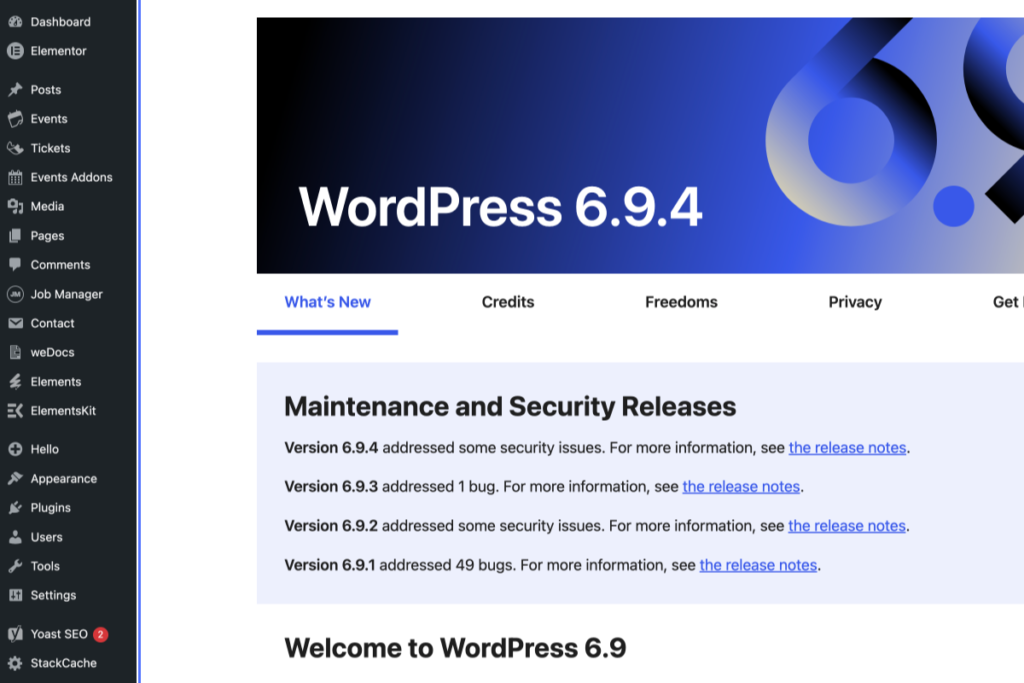
Screenshot of the WordPress 6.9.4 dashboard showing maintenance and security release notes, navigation menu on the left, and a blue-highlighted “What’s New” tab. – OADR Training
2
Click on the link “Job Manager”
A WordPress 6.9.4 dashboard is shown with the “Job Manager” menu expanded, displaying options like Job Listings, Types, Categories, and Marketplace. – OADR Training
3
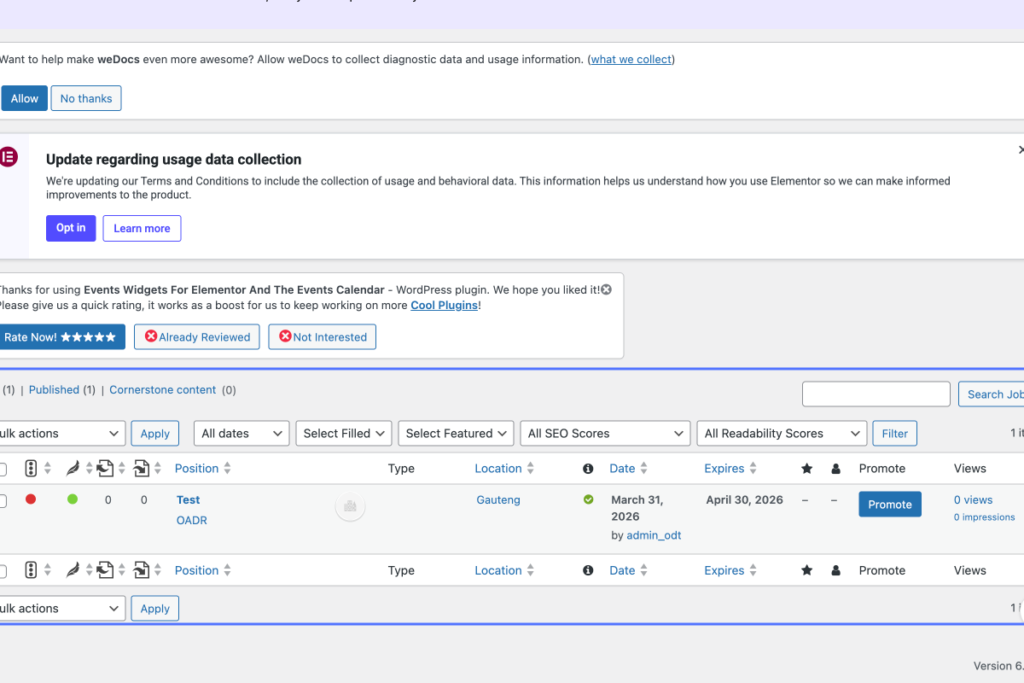
Click on “Search Jobs: Select bulk action Bulk actions Edit Move to Trash Approve Jobs Expire Jobs Mark Jobs …”
Tab Name: Jobs ‹ OADR Training — WordPress
Screenshot of a WordPress admin dashboard showing a data collection update notification, plugin suggestions, and a table listing SEO performance for a page. – OADR Training
4
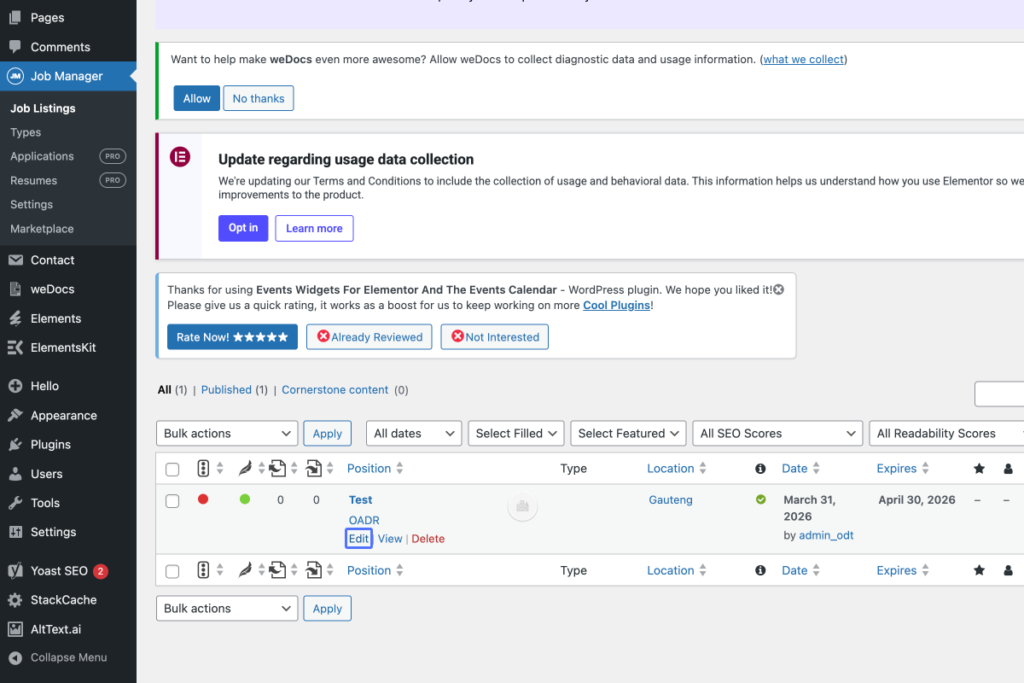
Click on the link “Edit”
Screenshot of a WordPress admin dashboard showing notifications, plugin updates, and a table listing posts with options to edit, view, or delete. – OADR Training
5
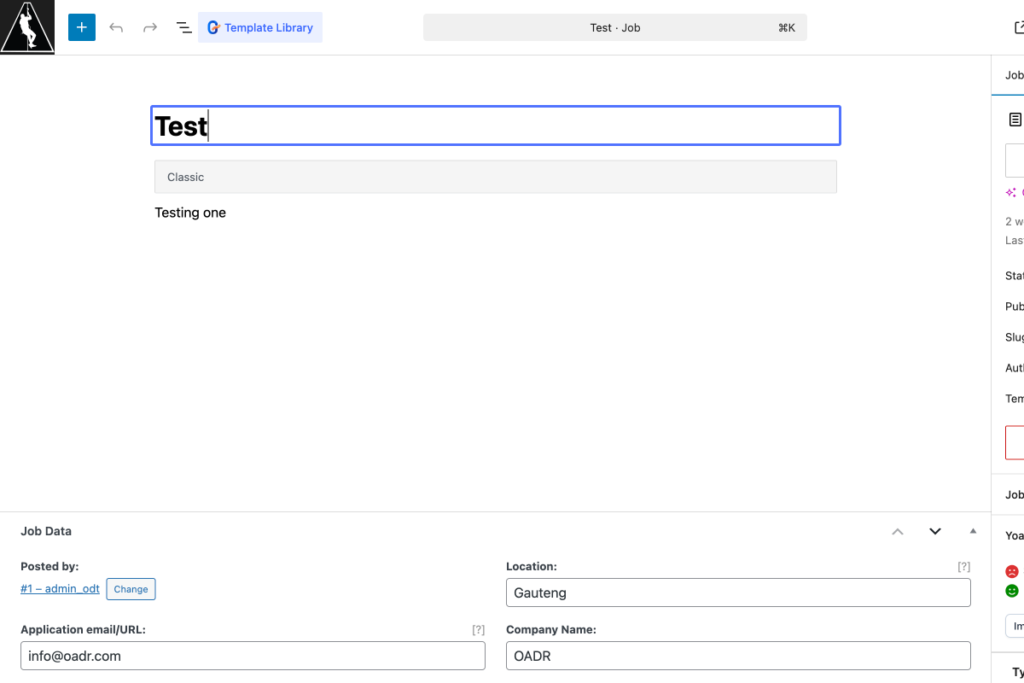
Click on “Test”
Tab Name: Edit Job “Test” ‹ OADR Training — WordPress
A web interface displays a form titled “Test” with sections for job data, location set to Gauteng, company name as QADR, and email info@qadr.com. – OADR Training
6
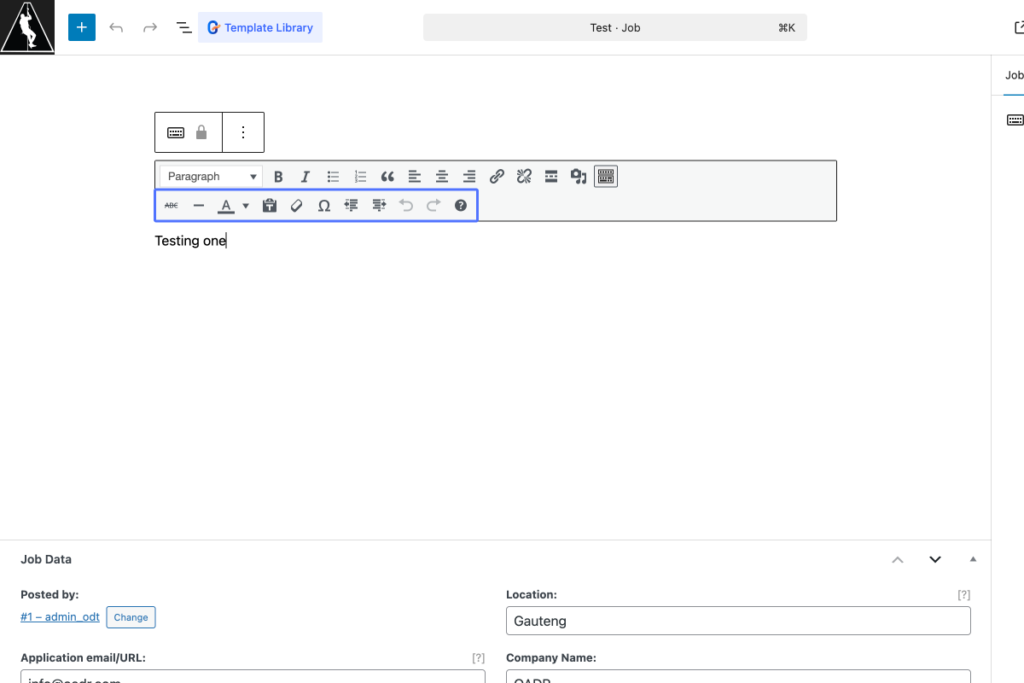
Click on “Testing one”
A web interface displays a job advert form being filled out, with “Testing one” typed in the description field and various job data fields visible below. – OADR Training
7
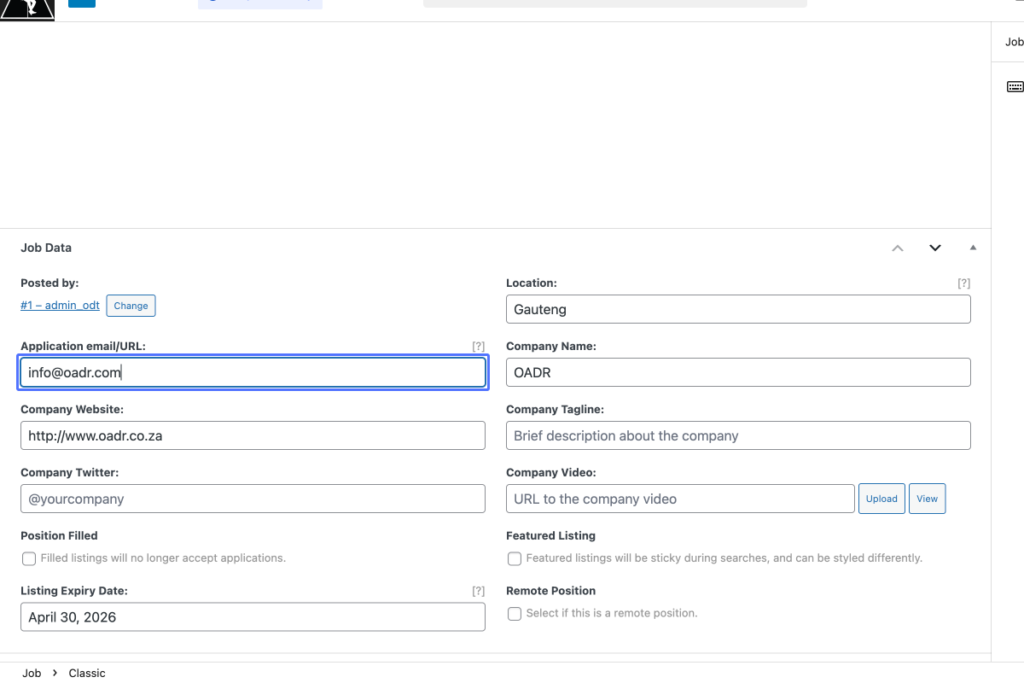
Click on the input “Application email/URL: [?]”
A job posting form is filled out with details such as email, company name, website, location, strapline, Twitter, YouTube, listing expiry date, and featured listing options. – OADR Training
8
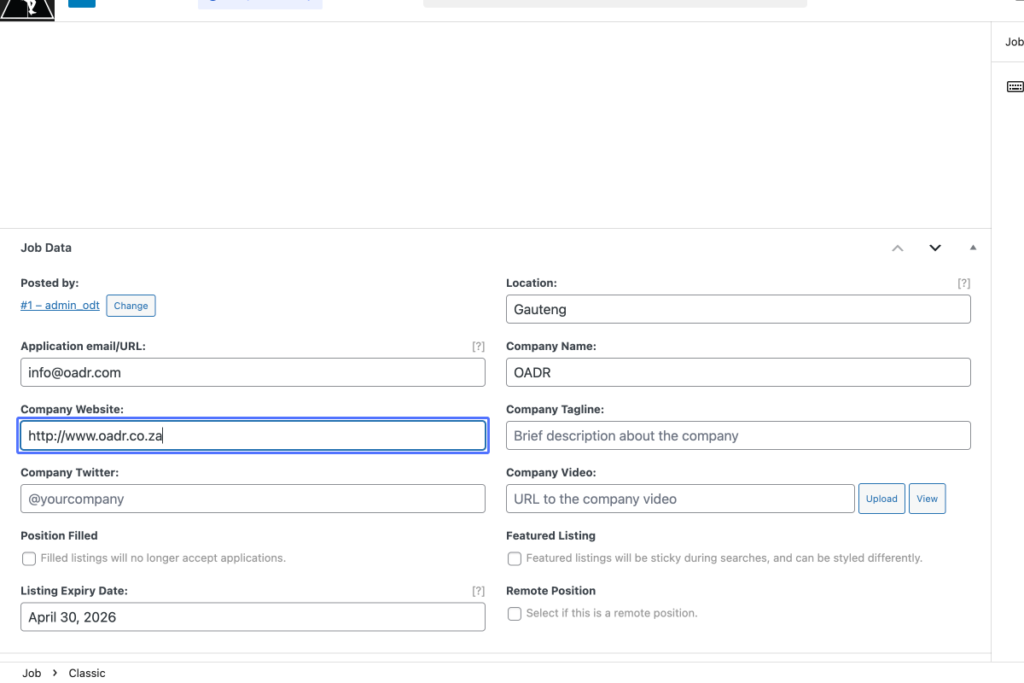
Click on the input “Company Website:”
A job posting form is filled out with fields for email, website, location, description, tagline, video, and expiry date. Some fields, such as website and location, contain sample text. – OADR Training
9
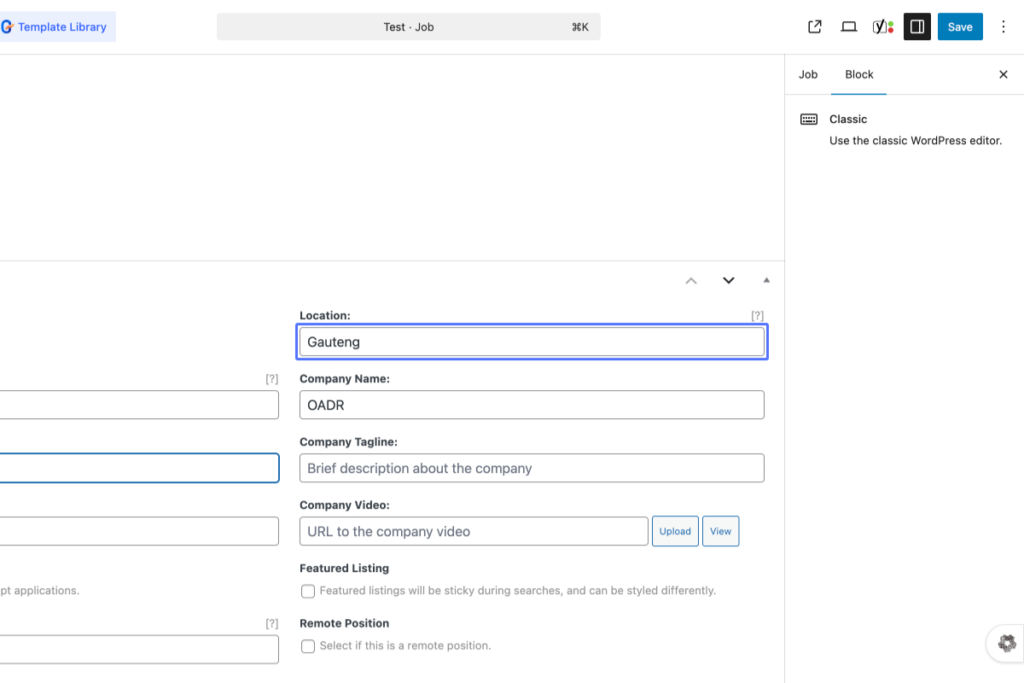
Click on the input “Location: [?]”
A WordPress editor screen showing a job posting form with fields for location, company name, strapline, company video, and remote option. – OADR Training
10
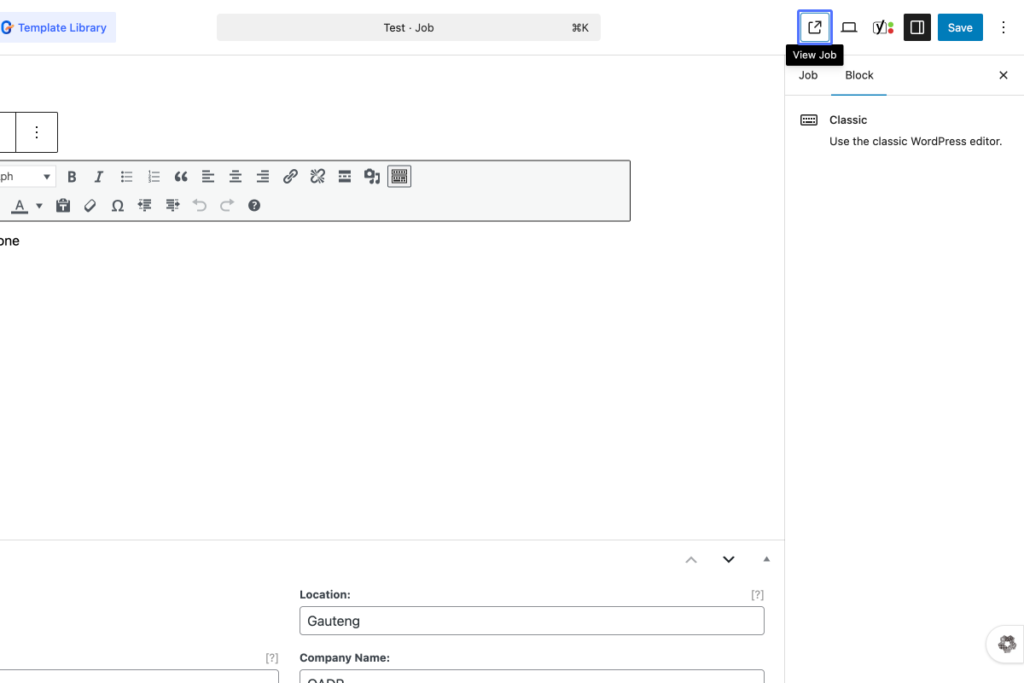
Click on the link “View Job”
A WordPress interface showing the classic editor with fields for job location and company name, and options to view, publish, or save the post. – OADR Training
11
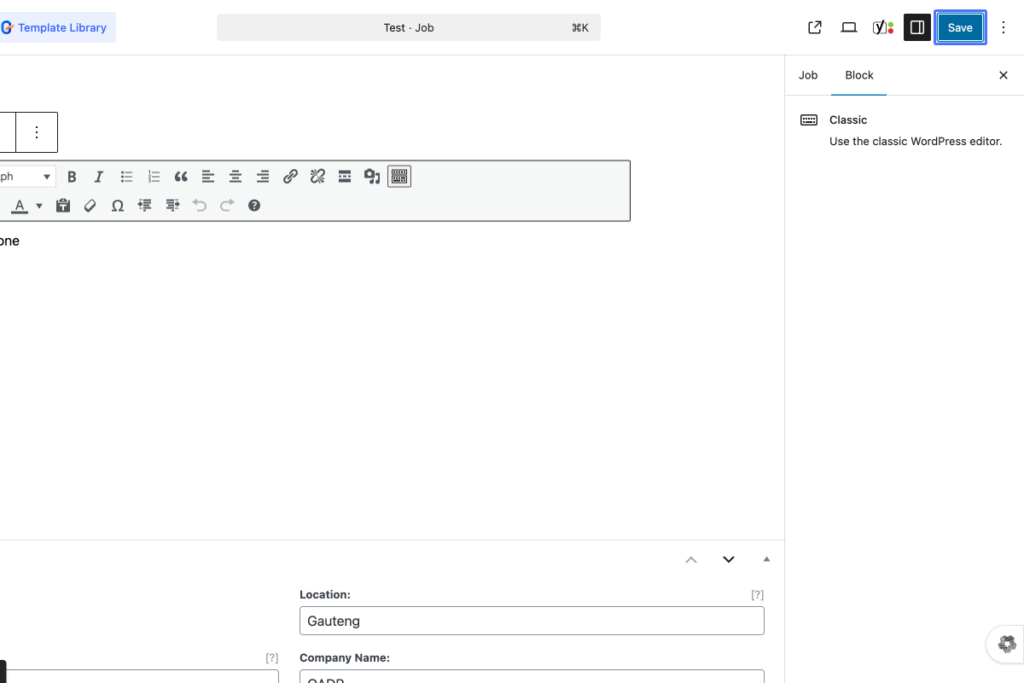
Click on the button “Save”
Screenshot of a WordPress editor showing a blank post titled “Test – Job” with location and company name fields visible below the text editor. – OADR Training