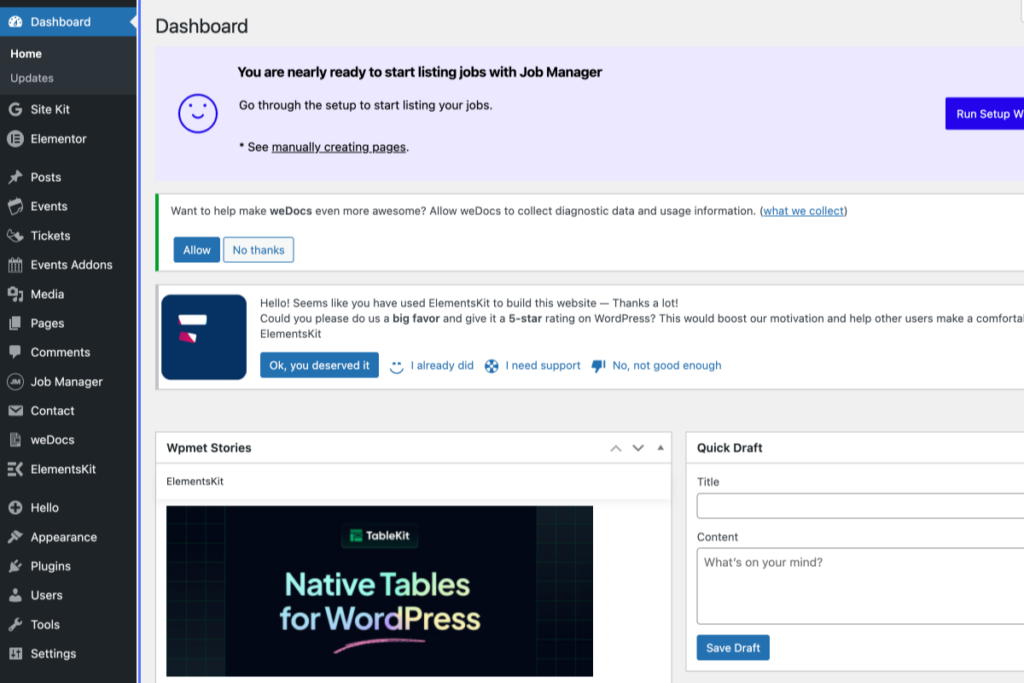
WordPress admin dashboard displaying notifications, menu options on the left, a “Native Tables for WordPress” banner, and a Quick Draft section for adding new post content. – OADR Training
2
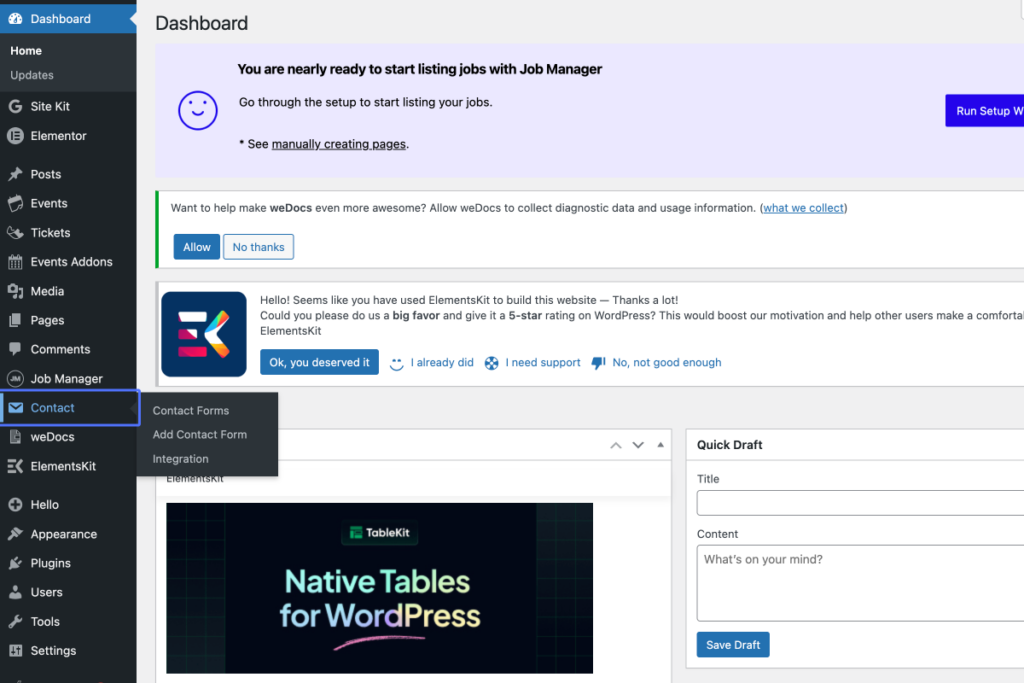
Click on the link “Contact”
Screenshot of a WordPress dashboard showing a notification for Job Manager, a menu with Contact Forms options, and a plugin advert for Native Tables for WordPress. – OADR Training
3
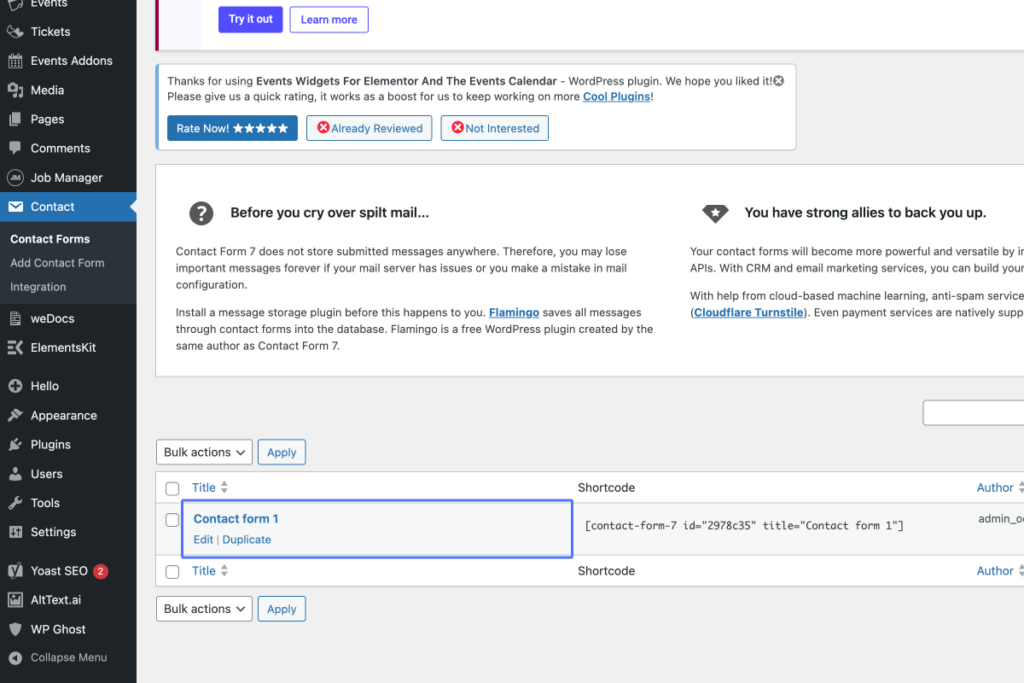
Click on “Contact form 1 Edit | Duplicate”
Tab Name: Edit Contact Form ‹ OADR Training — WordPress
WordPress admin dashboard showing the Contact Forms page with “Contact form 1” listed and options to edit or duplicate the form. – OADR Training
4
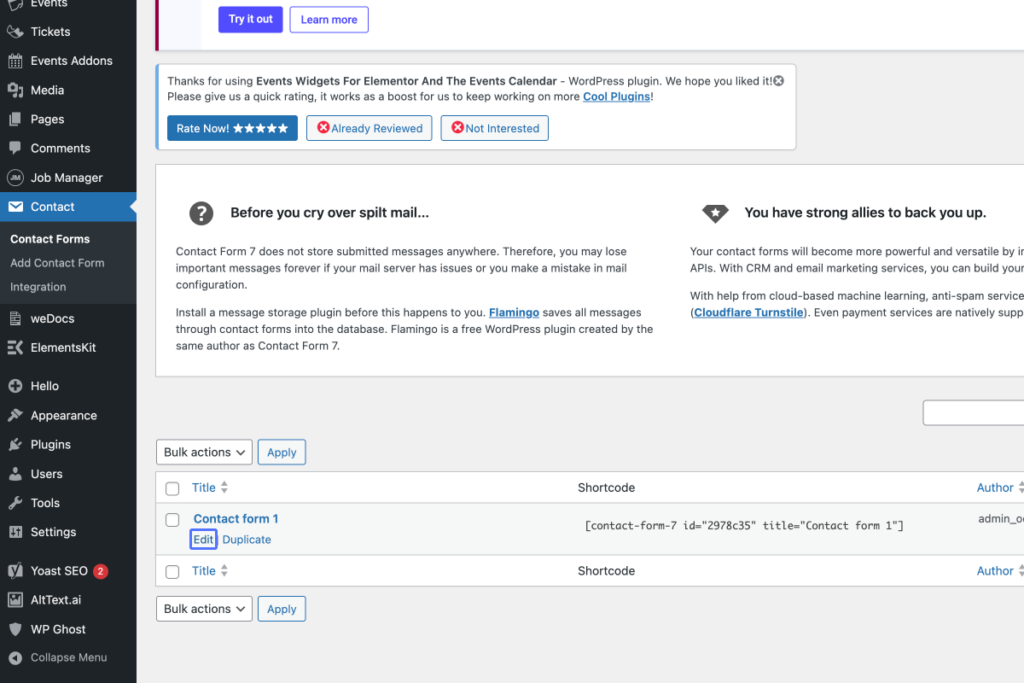
Click on the link “Edit”
Screenshot of a WordPress dashboard showing the Contact Forms section with a list of forms, plugin notifications, and options to edit or duplicate a contact form. – OADR Training
5
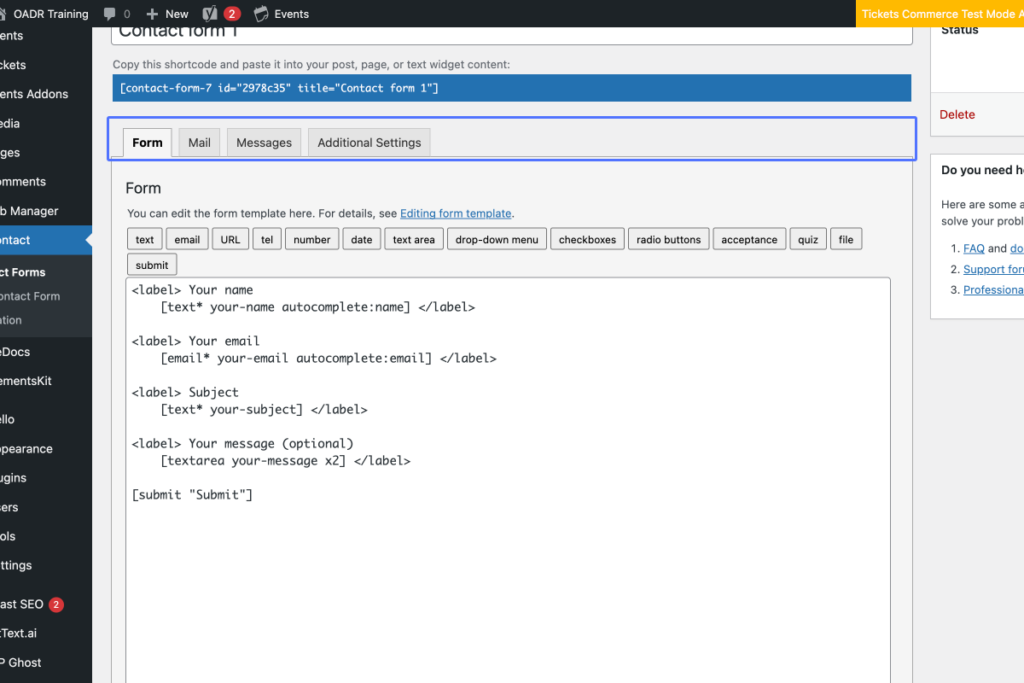
Click on “FormMailMessagesAdditional Settings”
Screenshot of a WordPress admin dashboard showing the editing view of a contact form with shortcode and form field code. – OADR Training
6
Click on the button “Mail”
Screenshot of a WordPress admin dashboard showing the editing interface for a contact form with fields for name, email, subject, and message. – OADR Training
7
Click on “Mail You can edit the email template here. For details, see Setting up mail. In the following fields…”
Screenshot of a WordPress contact form mail settings page showing fields for To, From, Subject, Additional Headers, and Message Body templates. – OADR Training
8
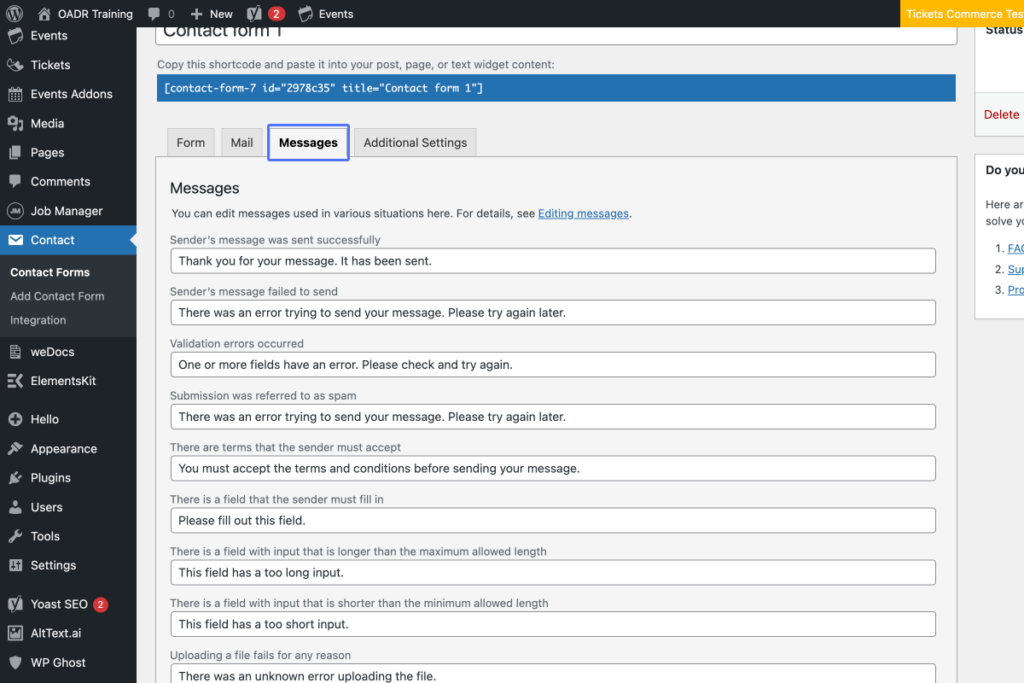
Click on the button “Messages”
Screenshot of the WordPress Contact Form 7 plugin settings page, showing the “Messages” tab with editable default error and feedback messages for form submissions. – OADR Training
9
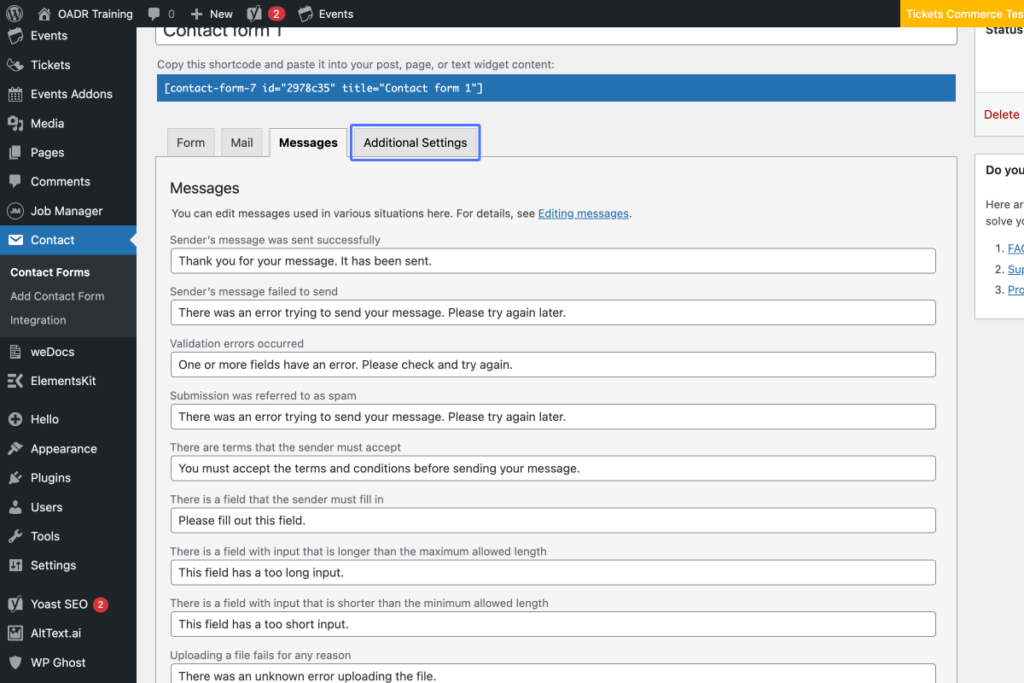
Click on the button “Additional Settings”
Screenshot of the WordPress Contact Form 7 plugin showing the Messages tab with various error and confirmation messages for form submissions. – OADR Training
10
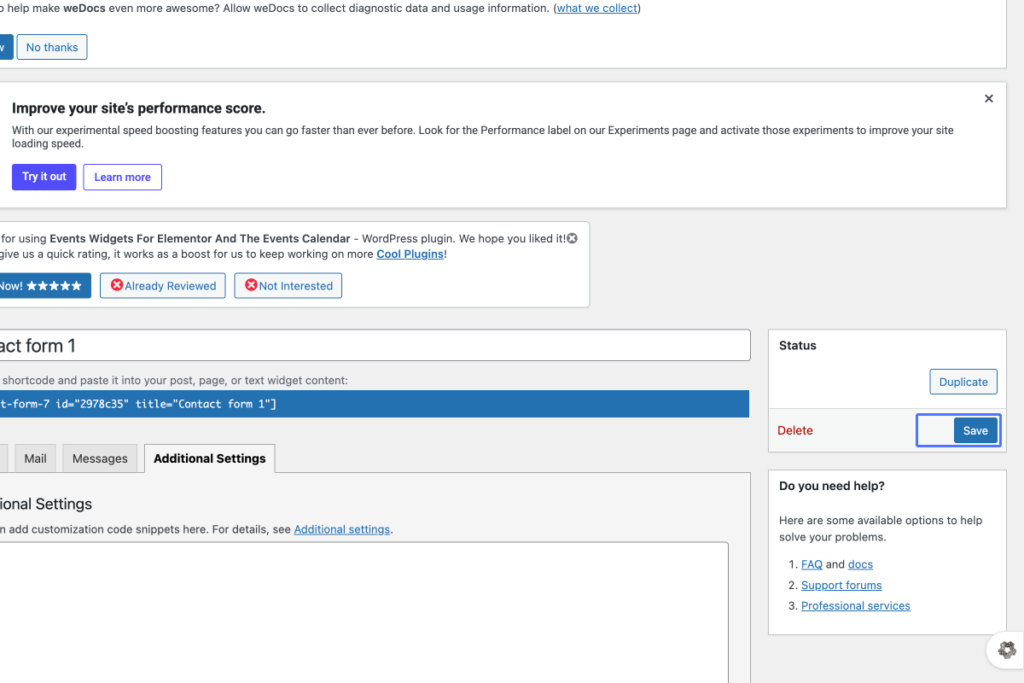
Click here
Screenshot of a WordPress admin dashboard showing the editing screen for a contact form, with options to save, duplicate, or delete the form on the right-hand side. – OADR Training