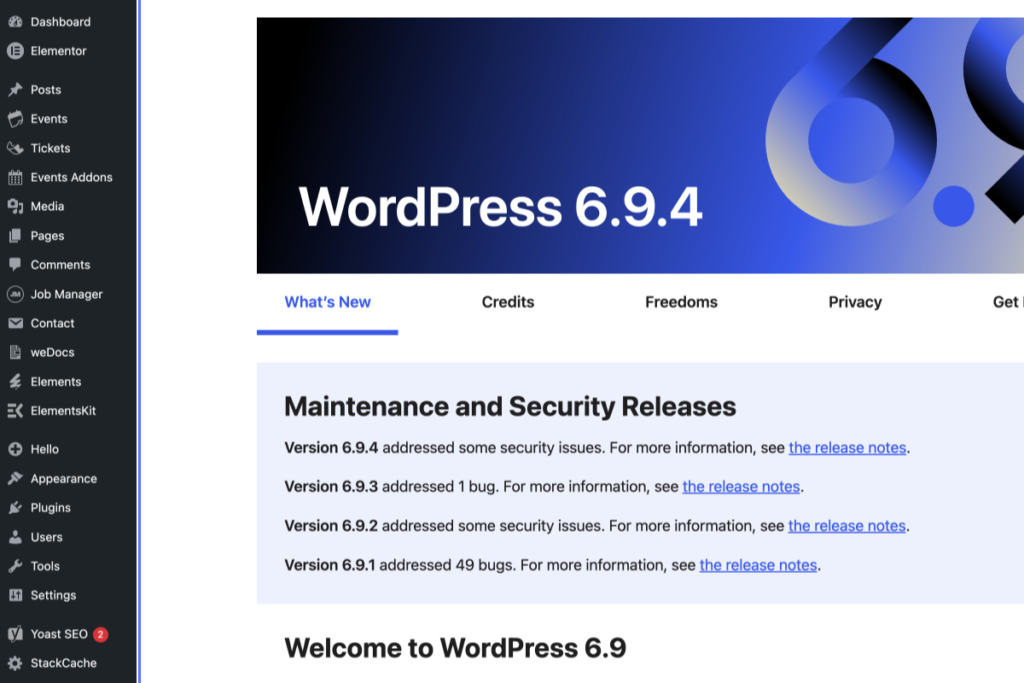
Screenshot of the WordPress 6.9.4 dashboard showing the “What’s New” tab, highlighting maintenance and security releases, with a sidebar menu on the left. – OADR Training
2
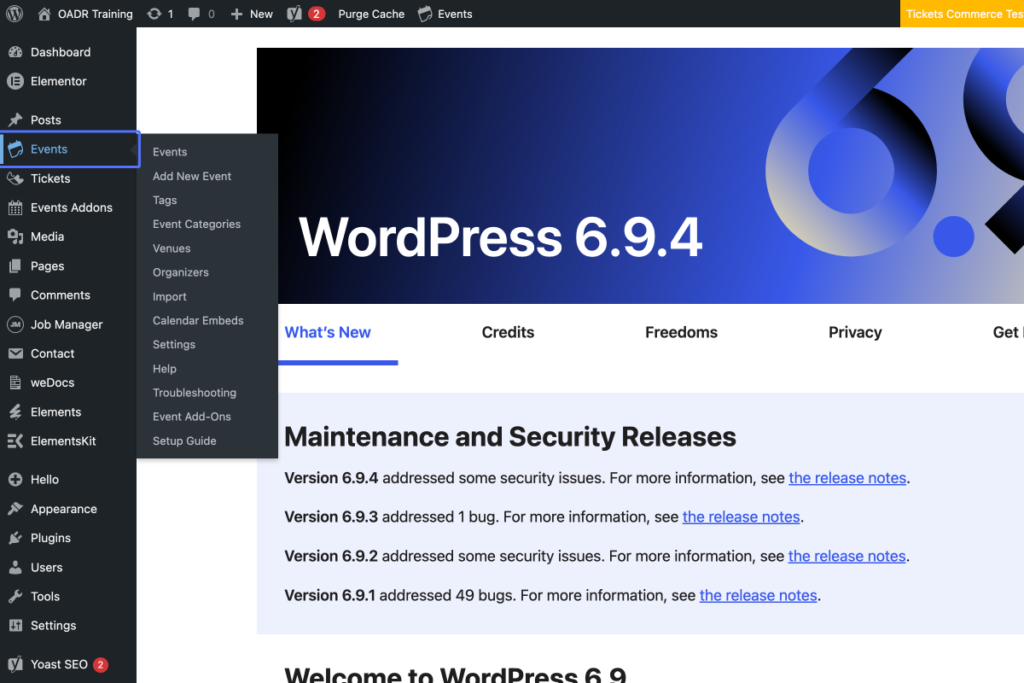
Click on the link “Events”
Screenshot of a WordPress admin dashboard showing the “Events” menu expanded and the WordPress 6.9.4 update details under “What’s New” displayed in the main content area. – OADR Training
3
Click on the link “Add New Event”
Tab Name: Events ‹ OADR Training — WordPress
4
Click on the input “Add title”
Tab Name: Add New Event ‹ OADR Training — WordPress
5
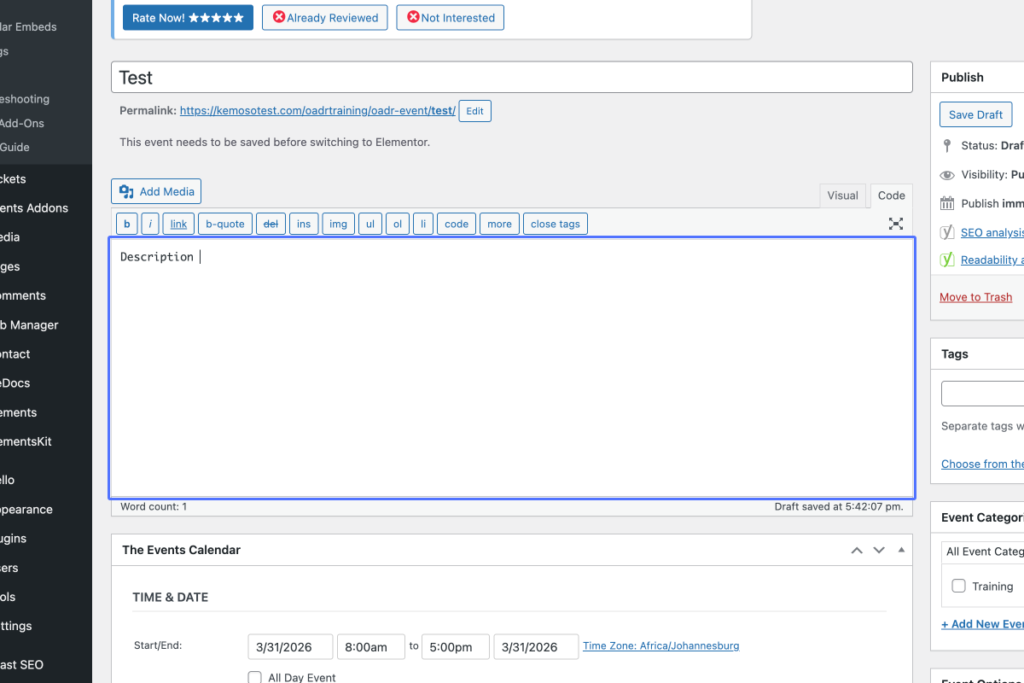
Click here
WordPress post editor screen showing a draft event titled “Test” with empty description and event details set for 31 March 2026, from 8:00am to 5:00pm. – OADR Training
6
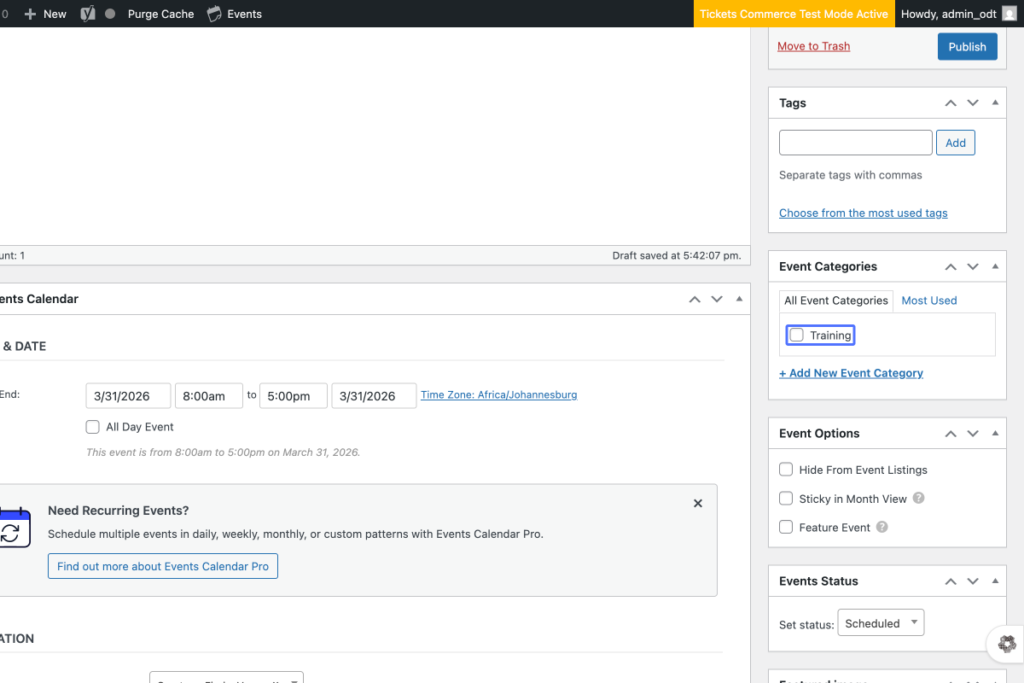
Click on “Event Categories Move up Move down Toggle panel: Event Categories All Event Categories Most Used Tr…”
WordPress admin dashboard showing the editing screen for an event, with fields for date, time, categories, and event options. The “Tickets Commerce Test Mode Active” alert is visible at the top. – OADR Training
7
Click on “Training”
WordPress Events Calendar editor showing event details, tags, categories, scheduling options, and an alert about recurring events. The “Tickets Commerce Test Mode Active” notice is at the top. – OADR Training
8
Click on “Start/End: to Time Zone: Africa/Johannesburg All Day Event This event is from 8:00am to 5:…”
Screenshot of The Events Calendar event editor in WordPress, showing date, time, and location settings for an event on 31 March 2026, from 8:00am to 5:00pm. – OADR Training
9
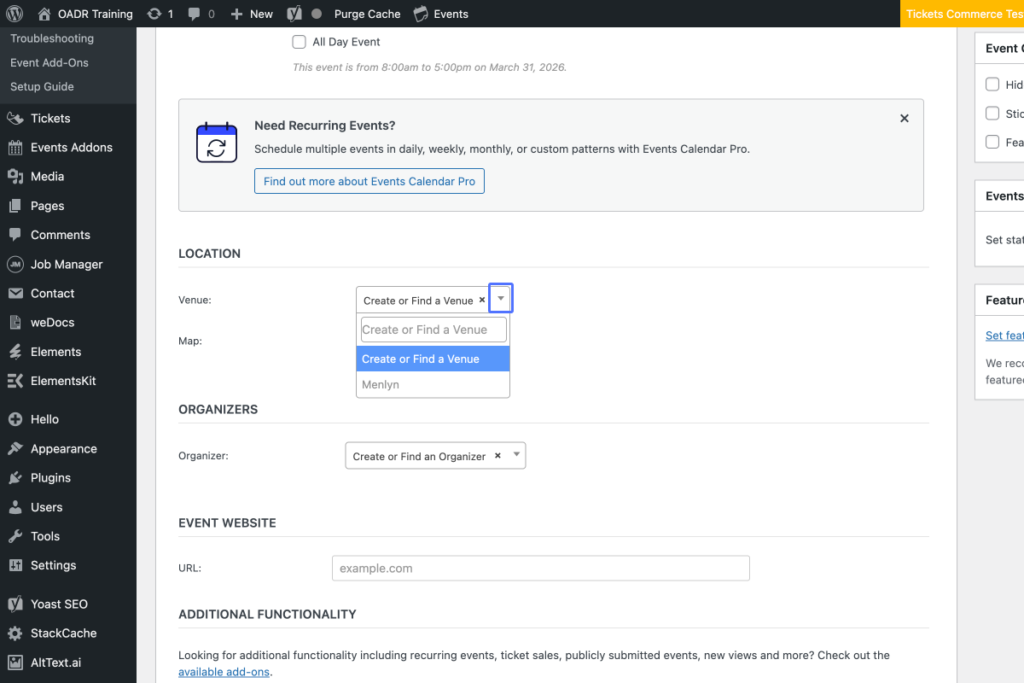
Click here
A WordPress event editor screen showing options to create or find a venue and organiser, with sections for event location and website. – OADR Training
10
Click on “Menlyn”
11
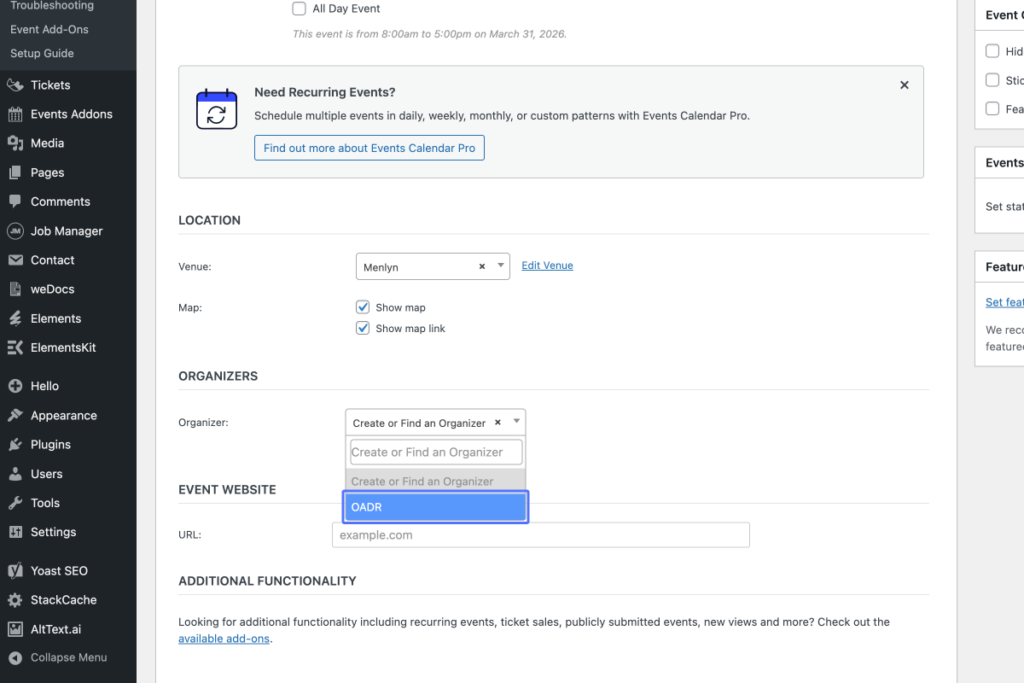
Click on “× Create or Find an Organizer”
12
Click on “OADR”
Screenshot of a WordPress admin page for adding an event, showing fields for location, organisers, event website, and additional functionality information. – OADR Training
13
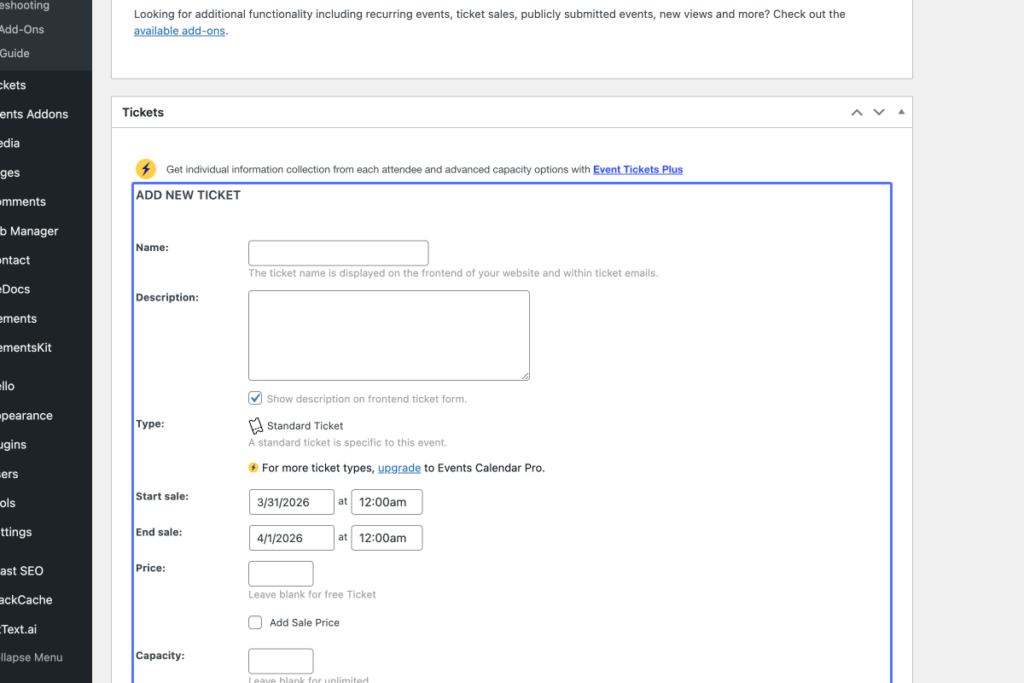
Click on the button “New ticket”
14
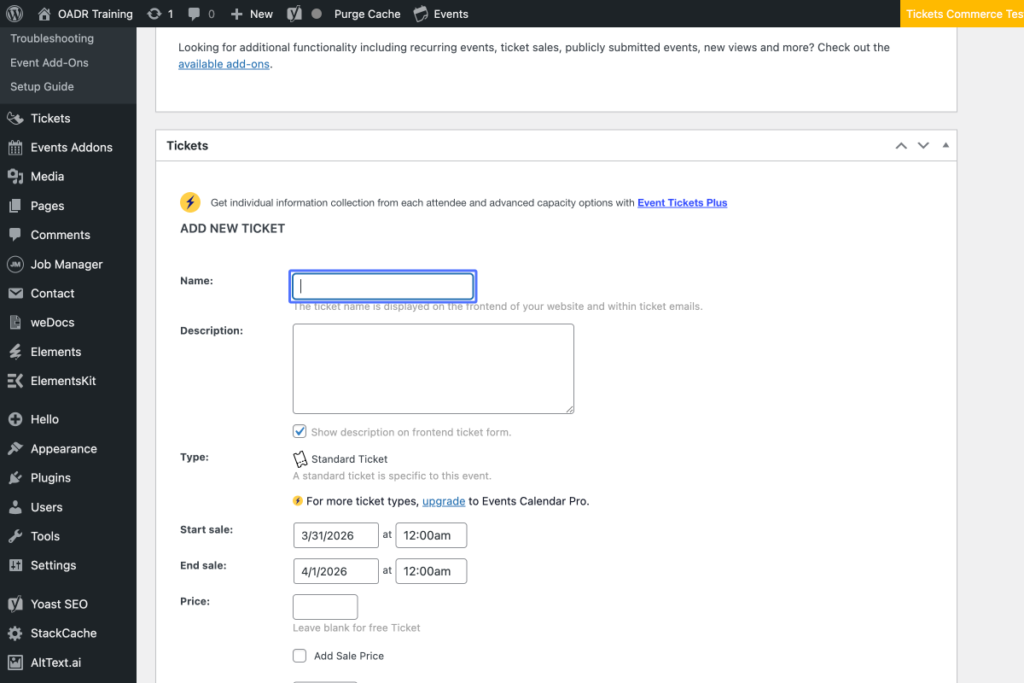
Click on “ADD NEW TICKET Name: The ticket name is displayed on the frontend of your website and within ticket …”
Screenshot of a web form titled “Add New Ticket,” showing fields for name, description, sale dates, price, and capacity within an event management plugin interface. – OADR Training
15
Click on the input “Name:”
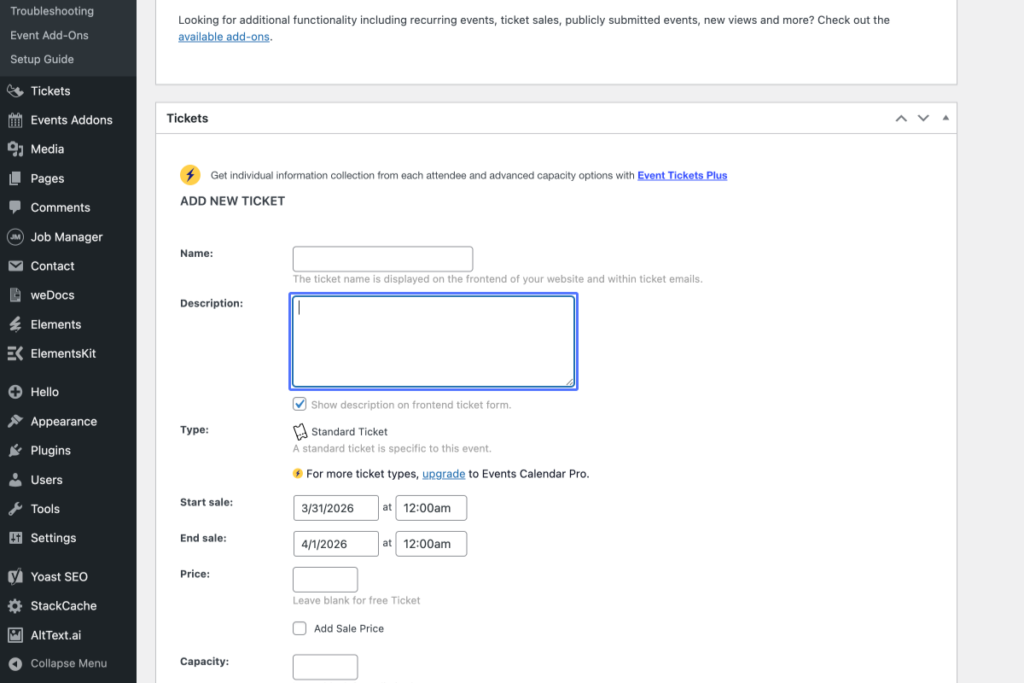
A WordPress admin dashboard shows the “Add New Ticket” form for events, with fields for name, description, start and end sale dates, and price. – OADR Training
16
Click here
Screenshot of a WordPress admin page showing the “Add New Ticket” form with fields for name, description, type, price, sale dates, and stock capacity options. – OADR Training
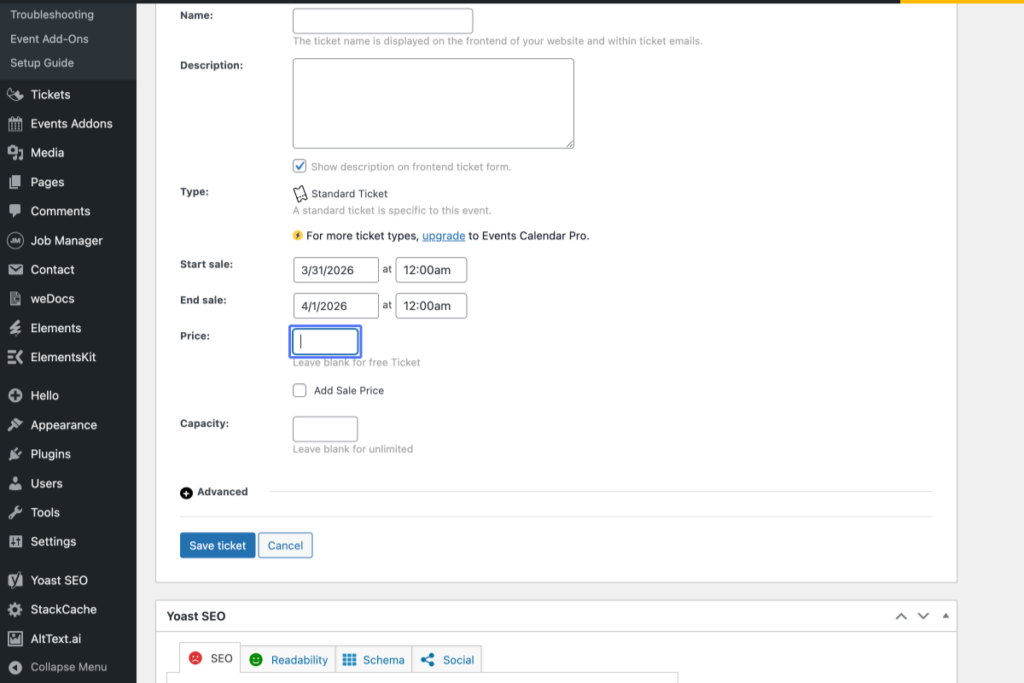
17
Click on the input “Price:”
Screenshot of an event ticket setup page showing fields for ticket name, description, type, start and end sale dates, price, capacity, and options to save or cancel. – OADR Training
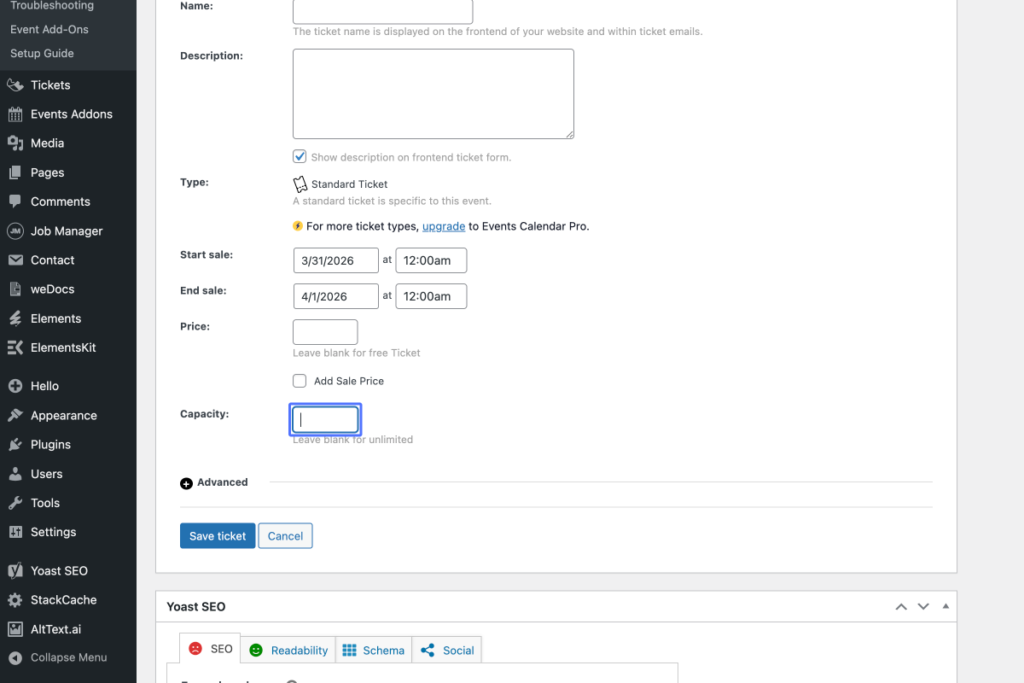
18
Click on the input “Capacity:”
A WordPress event ticket settings page showing fields for event dates, time, price, and capacity, with options to save or cancel at the bottom. – OADR Training
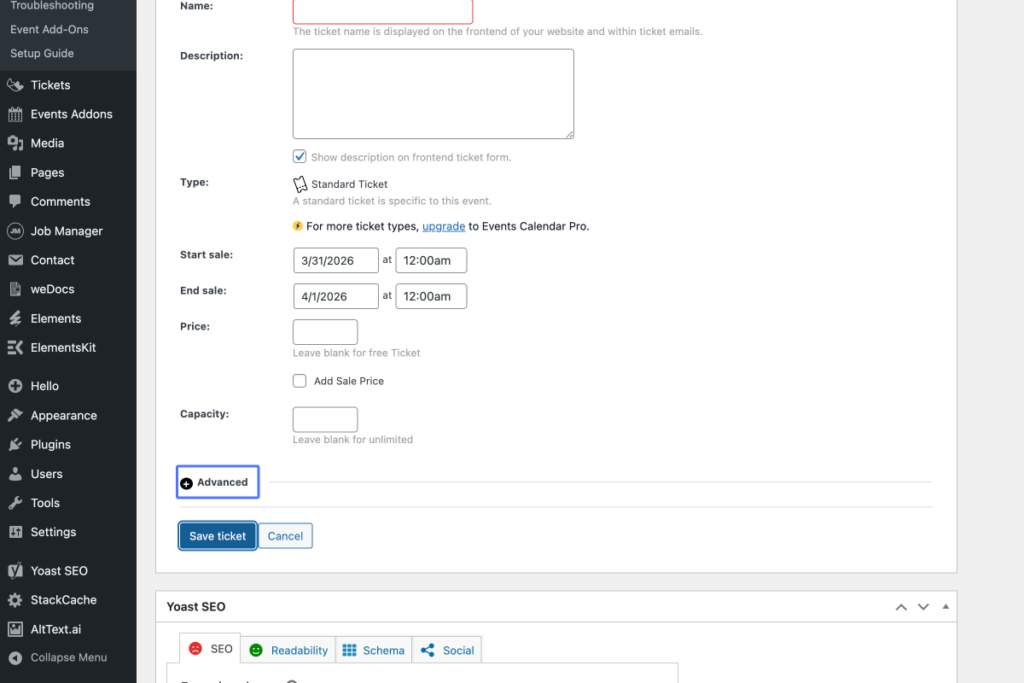
19
Click on the input
A WordPress event ticket creation page showing fields for name, description, date, time, price, capacity, and options to save or cancel the ticket. – OADR Training
20
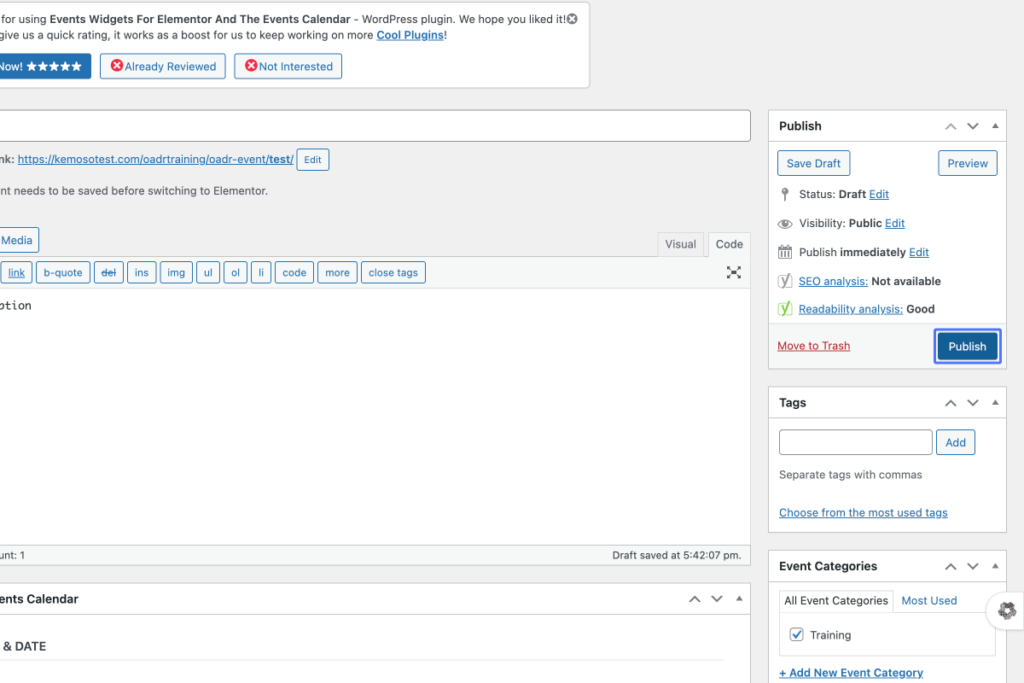
Click on the button “Publish”
Screenshot of a WordPress post editor showing a draft event listing. The “Publish” section is open on the right, with the blue “Publish” button clearly visible. – OADR Training